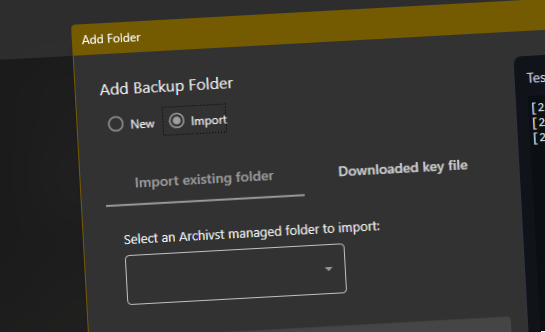
The dialog opens in New mode by default.
- The dialog title reads Add Folder
- Two mode options are shown at the top: New and Import
Select the Import radio button beneath the dialog heading. The import panel expands and most standard input controls (source folder, destination, encryption) are disabled — only import-related controls and the action buttons remain active. Remember You can switch back to New mode at any time without losing your place.
Use the Import existing folder tab if your folder is still registered to your Archivst cloud account and you are signed in.
- The dropdown automatically loads all folders registered to your account
- Select the folder you want to restore from the list
- Archivst will send a security code to your email to verify your identity
- Enter the code in the field that appears and click Verify
- On success, the encryption key is retrieved and the form is pre-filled automatically
Use the Downloaded key file tab if you previously exported and saved an .archivst.json key file for this folder.
- Click the folder icon to browse, or drag-and-drop the .json key file onto the path field
- Archivst reads the file and validates the embedded encryption key
- If the key is valid, the source path, destination, backup type, and FTP settings are pre-filled from the file
- A Key Loaded confirmation appears below the field on success
- After a successful import the key file is securely overwritten and deleted — store it safely beforehand
After a successful import, check the values that were populated from your key or cloud record.
- Source folder — the original local path being backed up
- Destination type — Cloud, Folder, or FTP, as set in the original configuration
- Destination path / FTP details — domain, path, and username for FTP; local path for Folder backups
- Encryption — automatically set to Import Key; the original encryption key is used
Leave Run selected under Test Run (it is selected by default). The test verifies that Archivst can reach the destination and that the encryption key is correct before committing the folder.
- The output console expands on the right showing real-time progress
- A progress indicator appears in the button area while the test runs
- If the test passes, the folder is saved and the dialog closes automatically
- If the test fails, the console shows the error; the folder is not saved so you can correct the issue and retry
Press the Add Folder button to validate inputs and start the process. Archivst checks all required fields, confirms the encryption key is present, and — if a test run was selected — begins the destination test.
- If any required field is missing, a validation message appears inline
- On success the folder appears in your backup set and an initial file-count calculation begins
- For cloud folders, the folder manifest is also registered with the Archivst server before the dialog closes